Ready to transform your iPad 9th Gen from a casual tablet into a versatile powerhouse? You’ve come to the right place. Choosing the right Essential Accessories for iPad 9th Gen (Cases, Stylus, Keyboards) isn't just about adding peripherals; it's about unlocking new levels of productivity, creativity, and protection for your beloved device. Whether you’re a student, a creative professional, or simply someone who loves getting the most out of their tech, equipping your iPad with the right gear can make all the difference.
At a Glance: Your iPad 9th Gen Accessory Cheat Sheet
- First things first: Always confirm your iPad model (Settings > General > About > Model Name) to ensure compatibility. The 9th Gen uses a Lightning port and supports the 1st Generation Apple Pencil.
- Cases: Essential for protection. Look for durable options like OtterBox or smart covers that double as stands.
- Stylus: The Apple Pencil (1st Gen) is the gold standard for precision. For budget-conscious users or note-takers, the Logitech Crayon offers an excellent alternative.
- Keyboards: Turn your iPad into a laptop-like experience. Consider the Apple Smart Keyboard or versatile Bluetooth options like the Logitech MX Keys Mini.
- Screen Protectors: Guard against scratches and, with matte finishes, enhance the drawing and writing feel.
- Stands & Docks: Improve ergonomics and versatility. Brands like Twelve South and Anker offer great solutions for hands-free use.
Understanding Your iPad 9th Gen: The Foundation of Accessory Choices
Before diving into specific recommendations, let's nail down what makes the iPad 9th Gen unique in the accessory landscape. Many iPads look similar, but their internal specs and external ports dictate compatibility.
To confirm you have the iPad 9th Gen, simply check the model number on the back of your device (it starts with "A") or navigate to Settings > General > About > Model Name. This seemingly small step is crucial, as it impacts everything from charger compatibility to stylus support.
The iPad 9th Gen features a Lightning charging port, unlike newer iPad Pro and Air models that have transitioned to USB-C. This is a key detail when considering chargers, hubs, and even some stylus options. Furthermore, it's exclusively compatible with the Apple Pencil (1st Generation). Keep these two points in mind as we explore the best accessories.
The Unsung Hero: Cases That Protect and Serve
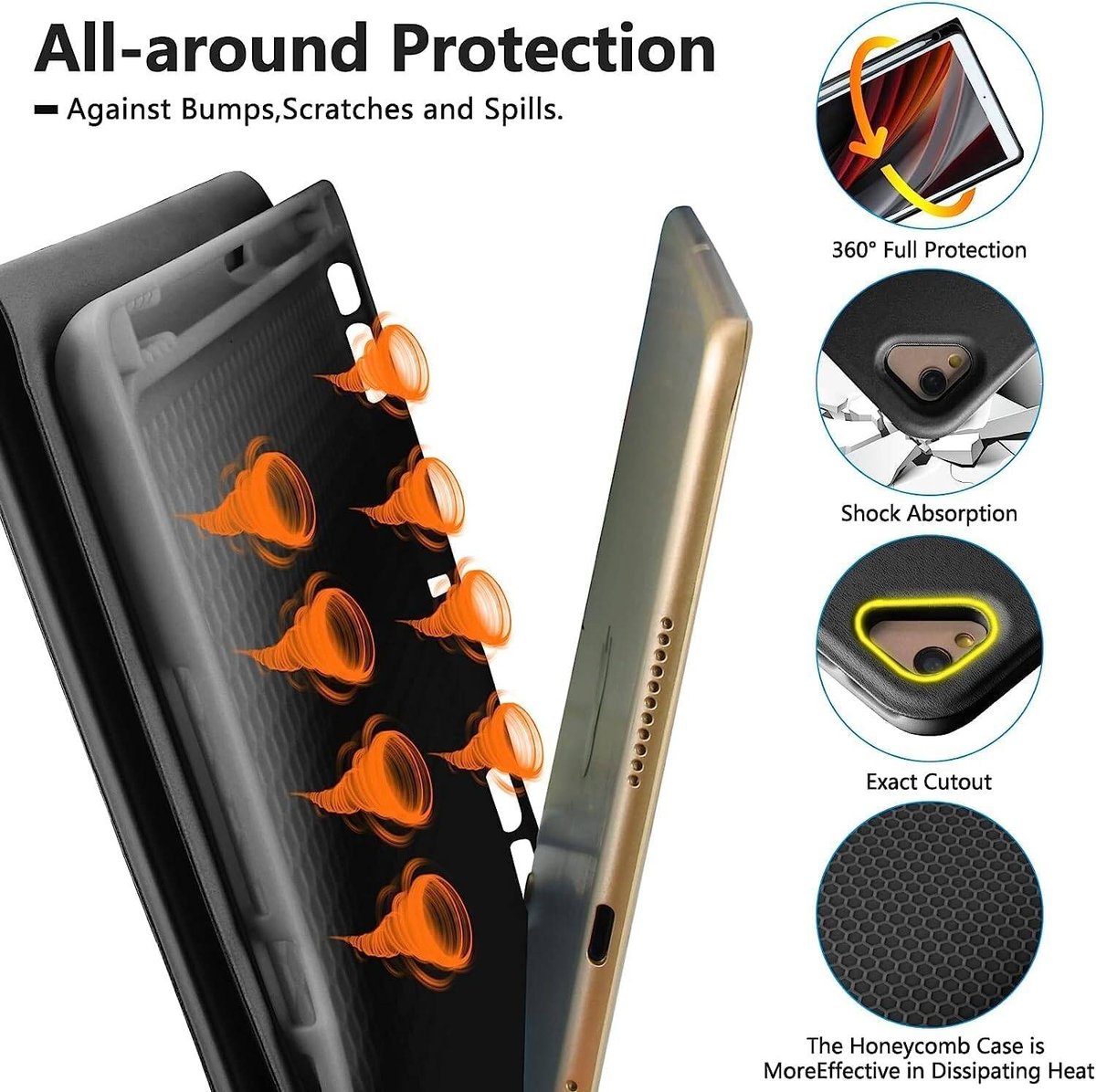
Your iPad is an investment, and like any valuable asset, it deserves robust protection. A good case shields your device from accidental drops, scratches, and everyday wear and tear. But beyond mere defense, the right case can also enhance usability, often doubling as a stand.
When you're looking for the ultimate guide to iPad cases, remember that the 9th Gen fits specific dimensions, so always double-check product compatibility.
For the Accident-Prone and Adventurous: Heavy-Duty Protection
If your iPad accompanies you to bustling coffee shops, crowded classrooms, or even construction sites, you'll want a case built to withstand more than just a minor bump.
- OtterBox stands out as a titan in rugged protection. Their cases are renowned for their multi-layer design, often incorporating shock-absorbing materials, port covers to keep out dust, and built-in screen protectors. While they add bulk, the peace of mind they offer is unparalleled, making them perfect for students who toss their iPad into a backpack or field professionals who need extra durability.
For Everyday Use and Media Consumption: Smart Covers & Folios
Most users will find a slim, functional case more suitable. These typically offer good all-around protection while adding minimal bulk.
- Apple's Smart Cover (or similar third-party folio cases): These magnetic covers protect your screen and fold into various stand configurations for typing or viewing. They automatically wake and sleep your iPad when opened or closed, preserving battery life. Many third-party options offer similar functionality with added features like a pencil holder or more robust back protection, often at a more attractive price point. Look for ones made from durable PU leather or soft-touch materials.
Pro Tip: Some cases offer integrated keyboard functionality, which we'll discuss more below. These all-in-one solutions can be incredibly convenient for on-the-go productivity.
Unleash Your Inner Artist and Note-Taker: The Essential Stylus
A stylus transforms your iPad from a touch-only device into a precision tool for drawing, note-taking, and detailed editing. For the iPad 9th Gen, your primary choices are clear: the Apple Pencil (1st Gen) and the highly regarded Logitech Crayon. If you're pondering a deep dive into choosing the right iPad stylus, you'll find these two leading the pack for the 9th Gen.
The Gold Standard: Apple Pencil (1st Generation)
The Apple Pencil (1st Gen) offers unparalleled precision, pressure sensitivity, and tilt support. It feels incredibly natural in hand, making it the preferred choice for serious artists, designers, and anyone who demands the most authentic pen-on-paper experience.
- Key Features: Pixel-perfect precision, pressure sensitivity for varying line thickness, tilt sensitivity for shading, virtually no lag.
- Charging: It charges by plugging directly into your iPad's Lightning port (which can look a bit awkward but is effective) or via a supplied adapter with a Lightning cable.
- Best for: Digital artists, graphic designers, architects, or anyone who values the absolute best in writing and drawing accuracy.
The Budget-Friendly and Robust Alternative: Logitech Crayon
The Logitech Crayon is a fantastic alternative for budget-conscious users, digital journal-keepers, and students focused on note-taking. While it lacks the pressure sensitivity of the Apple Pencil, it offers excellent precision and tilt support, making it highly capable for most tasks.
- Key Features: Apple Pencil technology for precision and palm rejection, tilt support, durable aluminum body, comfortable flat design (prevents rolling).
- Charging: It charges via a Lightning or USB-C cable (depending on the Crayon model, but make sure to get the Lightning-compatible one for the 9th Gen if you want to use your iPad's charger). Note: It does not magnetically attach to the iPad for charging.
- Best for: Students, note-takers, light doodlers, or anyone seeking a durable, precise stylus without the premium price tag of the Apple Pencil. It's often recommended for its robust build, making it ideal for younger users or those who are hard on their tech.
Important Note on Stylus Compatibility: Some newer iPads support the Apple Pencil (2nd Gen), which charges magnetically. The iPad 9th Gen only supports the Apple Pencil (1st Gen). Do not buy a 2nd Gen Pencil for your 9th Gen iPad; it will not work.
Transform Your iPad into a Workstation: External Keyboards
If you plan to do any significant typing—be it emails, reports, or creative writing—an external keyboard is a game-changer. It transforms your iPad into a mini-laptop, offering a much more comfortable and efficient typing experience than the on-screen keyboard. For those looking for the best iPad keyboards for boosting your productivity, you'll find a few excellent avenues.
Apple's Integrated Solution: The Smart Keyboard
The Apple Smart Keyboard is Apple's own keyboard solution specifically designed for the iPad 7th, 8th, and 9th generations. It connects via the iPad's Smart Connector, meaning no Bluetooth pairing or charging required—just attach it, and you're ready to type.
- Key Features: Full-sized keyboard, durable fabric finish that protects the screen, folds into a stand, uses the Smart Connector for power and data.
- Pros: Seamless connection, no battery worries, integrated design.
- Cons: No backlight, no trackpad, often pricier than third-party options.
- Best for: Users who prioritize simplicity, reliability, and an integrated design without needing a trackpad.
Versatile Bluetooth Keyboards: For Every Setup
Bluetooth keyboards offer flexibility, allowing you to use them with your iPad and other devices. They often come with more features and a greater variety of designs.
- Logitech MX Keys Mini: This compact Bluetooth keyboard is a standout choice. It can connect to up to three devices simultaneously, allowing you to switch between your iPad, computer, and phone with a single button press. It features comfortable, quiet keys, smart backlighting, and handy keys for emoji picking and microphone muting.
- Key Features: Connects to multiple devices, backlit keys, compact design, long battery life.
- Pros: Highly versatile, excellent typing experience, premium build quality.
- Cons: Requires separate charging, not integrated into a case (though many third-party cases have keyboard attachments that are similar).
- Best for: Users who want a premium typing experience and need a keyboard that can serve multiple devices.
Understanding the Magic Keyboard Misconception:
The ground truth mentioned the Apple Magic Keyboard. It's important to clarify: the Apple Magic Keyboard is NOT compatible with the iPad 9th Gen. The Magic Keyboard is designed for iPad Pro and newer iPad Air models that feature a different Smart Connector and design. If you're seeking a keyboard case for your iPad 9th Gen, look for the Apple Smart Keyboard or compatible third-party keyboard cases from brands like Logitech.
Adding Precision: The Mouse Experience
While not strictly "essential" for everyone, adding a mouse can significantly enhance productivity, especially for tasks involving text editing, spreadsheets, or graphic design. iPadOS supports mouse input, transforming your tablet into a more desktop-like experience.
- Logitech MX Anywhere 3S Mouse: This lightweight (95 grams) and compact mouse is an excellent companion. It boasts nearly silent buttons and an 8K DPI optical sensor that works flawlessly on virtually any surface, from glass to a rough wooden table. Made from 61-78% post-consumer recycled plastic, it's also an eco-conscious choice. Its rechargeable battery lasts approximately 70 days, and its Bluetooth performance is robust without needing a USB dongle.
- Best for: Anyone wanting desktop-level precision and comfort with their iPad, especially for extended work sessions.
Screen Protectors: More Than Just Scratches
A screen protector does more than just shield your display from scratches and cracks; it can dramatically improve your digital drawing and writing experience.
- Matte Screen Protectors (e.g., Paperlike, BELLEMOND): These protectors replicate a "pen-on-paper" feel, adding a subtle texture that provides resistance to your stylus. This not only makes writing and drawing feel more natural but also reduces stylus nib wear over time. The trade-off is a slight diffusion or "blur" to the display, which some users find reduces screen clarity.
- Magnetic Screen Covers: An ingenious alternative, these covers offer a paper-like texture for drawing and writing but are easily removable. This means you can snap them on for creative work and then take them off for crystal-clear media consumption, avoiding the permanent slight blur of traditional matte protectors. They're a versatile solution for artists and note-takers.
- Clear Tempered Glass Protectors: If your priority is maximum impact protection and retaining the original screen's clarity and smoothness, a good quality tempered glass protector is the way to go.
Stands, Docks & Charging: Enhancing Your Setup
Even the best iPad can benefit from a dedicated stand or a reliable charging solution. These accessories improve ergonomics, versatility, and ensure your device is always ready to go. You'll find that for students, prioritizing reliable power and sturdy stands can make a big difference, especially with the right iPad accessories specifically for students.
Ergonomic Stands: Elevate Your View
Using your iPad at a comfortable eye level can prevent neck strain during long sessions.
- Twelve South HoverBar Duo: This versatile stand features a strong, adjustable arm and a secure tablet clip. It’s been tested with various iPad models (including larger ones like the 11-inch iPad Pro, so your 9th Gen will be perfectly secure). The included clamp fits desks and tables with surface thicknesses from 0.4 to 1.4 inches, allowing you to position your iPad as a secondary screen, perfect for multitasking. It’s a premium option for a dedicated desktop setup.
- Anker (and similar brands): Offers more affordable and lightweight dock options that function primarily as stands. These often have adjustable angles and a stable base, perfect for propping up your iPad for video calls, movies, or even light typing with an external keyboard.
- Satechi hubs: While primarily USB-C hubs (making them less directly functional as hubs for the Lightning-port 9th Gen iPad), some models are lightweight and foldable, and can cleverly be used to prop up your iPad. When considering any brand for accessories, buying from a reputable one like Satechi is recommended, especially for more complex accessories where MFi (Made for iPhone/iPad) certification might be absent.
Reliable Chargers: Powering Your Adventures
While your iPad comes with a charger, having a faster or more portable option is always a good idea.
- Anker: This brand is consistently recommended for its reliable and fast-charging power solutions. Whether you need a compact wall charger for travel or a powerful portable battery pack, Anker offers a wide range of options that can quickly juice up your iPad. When you're packing light, a fast charger is indispensable for keeping your travel-friendly iPad accessories charged and ready.
Common Questions & Misconceptions About iPad 9th Gen Accessories
Let’s quickly address some of the most frequent questions that pop up when accessory shopping for the iPad 9th Gen.
Q: Can I use an Apple Magic Keyboard with my iPad 9th Gen?
A: No, the Apple Magic Keyboard is not compatible with the iPad 9th Gen. It's designed for iPad Pro and newer iPad Air models. For your iPad 9th Gen, look for the Apple Smart Keyboard or compatible third-party Bluetooth keyboard cases.
Q: Which Apple Pencil works with the iPad 9th Gen?
A: The iPad 9th Gen is compatible only with the Apple Pencil (1st Generation). The 2nd Generation Apple Pencil will not work with this model.
Q: What charging port does the iPad 9th Gen have?
A: The iPad 9th Gen uses a Lightning charging port. This is important to remember when buying cables, chargers, and any specialized hubs.
Q: Are paper-feel screen protectors worth it for artists?
A: Absolutely, for many artists and note-takers. They significantly enhance the tactile experience of drawing and writing, making it feel more like traditional media. However, they can slightly reduce screen clarity, so consider magnetic versions if you want the best of both worlds. For more specific guidance, explore must-have iPad accessories for artists.
Making Your Choices: Tailoring Accessories to Your Lifestyle
The "best" accessories aren't universal; they're the ones that best fit your specific needs and how you use your iPad 9th Gen.
- Identify Your Primary Use Cases: Are you a student taking notes, an artist sketching, a remote worker typing reports, or a casual user watching movies? Your primary activities will guide your accessory choices.
- Set a Budget: Accessories range widely in price. Determine what you're willing to spend, keeping in mind that investing in quality can often save you money in the long run.
- Prioritize Compatibility: Reconfirming your iPad's generation, charging port (Lightning), and stylus compatibility (Apple Pencil 1st Gen) is paramount.
- Consider Portability: If your iPad travels with you frequently, look for lightweight, durable, and integrated solutions. If it mostly stays at home, you might opt for larger, more ergonomic desktop accessories.
The iPad 9th Gen, especially the 64GB iPad 9th Generation, offers incredible value and versatility. By thoughtfully selecting the right case, stylus, and keyboard, you can elevate your experience and truly unlock its full potential. Happy accessorizing!